Tab Thinger
Tab thinger is a menu item for the Tab buttons’ menus. It will show up in the Tab View as well. 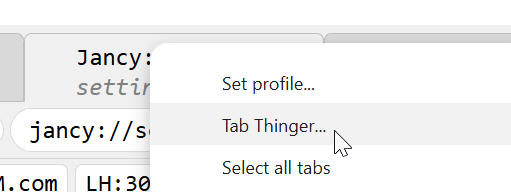
Adding Tab Thinger to Context Menu
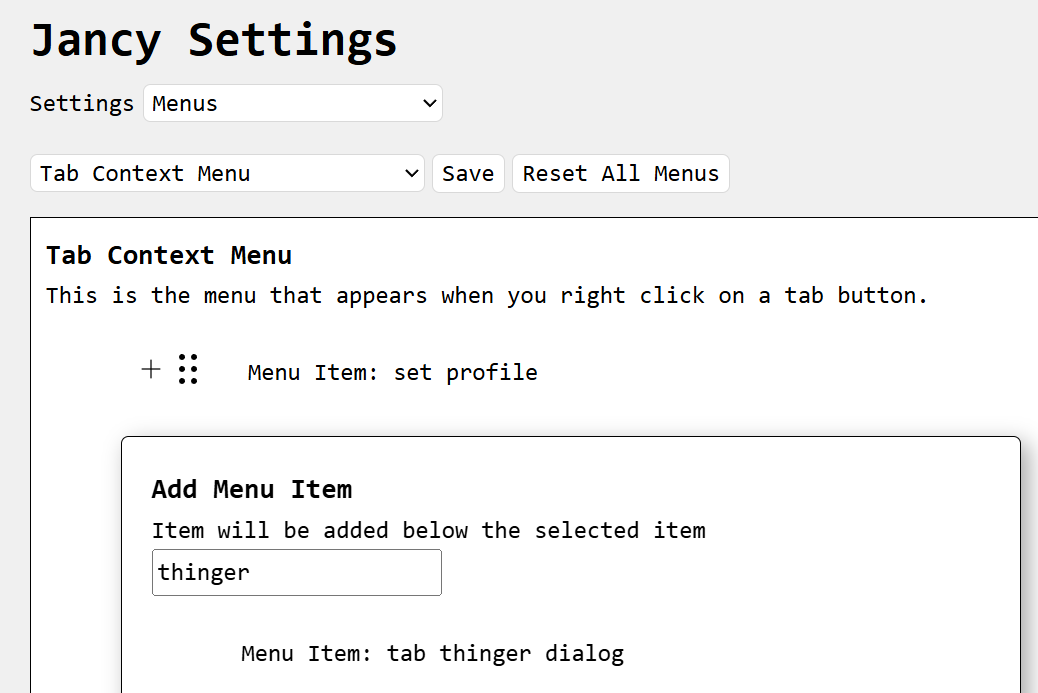
To be able to use Tab Thinger you need to add it to your Tab Context Menu and Tab Context Menu (Multiple)
Simply click the plus sign on the existing menu item in the menu editor above where you want Tab Thinger to show. Then choose Menu Item from the pop up and search for “thinger”. Click the “Menu Item: tab thinger dialog”. Then press save when done.
The Dialog View
After you’ve opened Tab Thinger you’ll see this dialog open up. You can choose what tab feature you want to query with (Title for instance). Then you can use a formula to express what you want to search for.
- Pick the tab property to search on:
PriorityorTitle.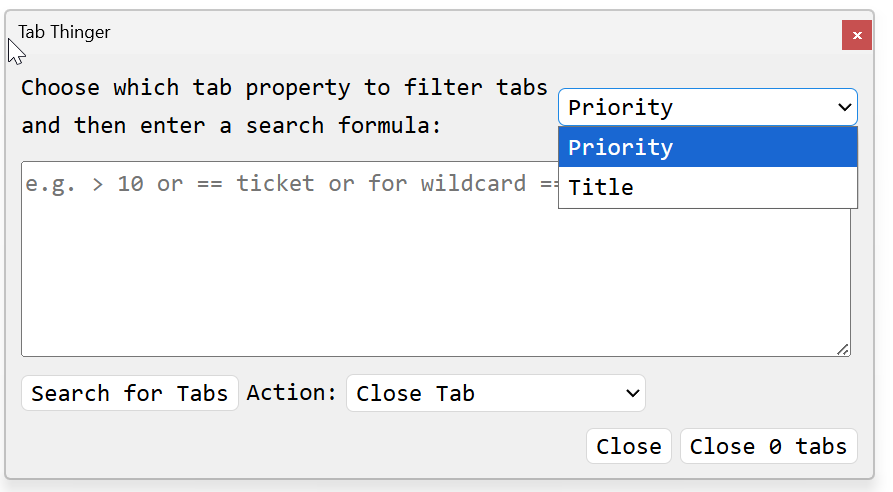
- Type a formula into the text box (see Writing Formulas below).
- Tab Thinger searches as you type. You can also click
Search for Tabsto search again. TheOkbutton shows how many tabs matched, for exampleClose 12 tabs.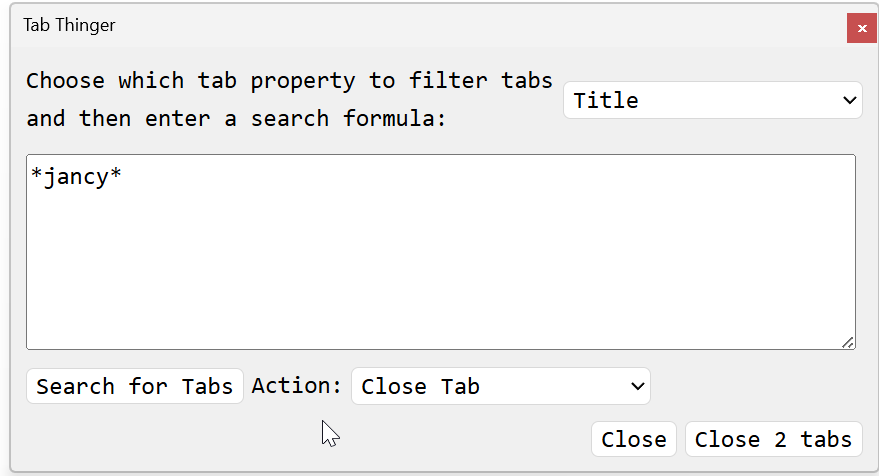
- Pick an
Actionand clickOkto apply it to every matching tab.
If your formula has a mistake in it, an error message shows up in red under the text box telling you where the problem is, for example Line 1, column 3: Expected a value. While there’s an error, no tabs are matched.
Tab Thinger searches tabs in all of your Jancy windows, not just the current one.
Writing Formulas
A formula is a comparison you check against each tab’s priority or title. Every tab that matches is selected.
Comparisons
Start with a comparison operator, followed by the value to compare against:
| Operator | Meaning | Example |
|---|---|---|
> | greater than | > 10 |
>= | greater than or equal to | >= 10 |
< | less than | < 5 |
<= | less than or equal to | <= 5 |
== or = | equal to | == pie |
!= or <> | not equal to | != pie |
~ or contains | contains | ~ sold out |
!~ | doesn’t contain | !~ sold out |
If you leave the operator off, it means ==. Typing pie is the same as typing == pie.
Some things to know:
- Upper and lower case don’t matter.
== PIEmatches a tab titledpie. - Numbers compare as numbers.
> 10matches a priority of11but not9. Text is compared alphabetically. ==matches the whole value.== piematches a tab titledpiebut not one titledapple pie. To match part of a title, use~(contains) or a wildcard.
Wildcards
With == and != you can use * to stand for “anything”:
| Formula | Matches |
|---|---|
== pie* | titles that start with “pie” |
== *pie | titles that end with “pie” |
== *pie* | titles with “pie” anywhere in them (same as ~ pie) |
!= *queue* | titles that don’t have “queue” in them |
Combining Comparisons
You can combine comparisons with and, or and not. You can also write these as &&, || and !.
| Formula | Matches |
|---|---|
>= 5 and <= 20 | priorities from 5 to 20 |
< 5 or > 20 | priorities below 5 or above 20 |
not ~ queue | titles that don’t contain “queue” |
~ ticket and not ~ sold out | titles containing “ticket” but not “sold out” |
and is checked before or, just like in math, where multiplication comes before addition. Use parentheses to group things differently:
(~ tickets or ~ checkout) and not ~ error
not (> 3 and < 7)
Text With Spaces or Special Characters
You can type text with spaces without quotes, like ~ sold out. If the text contains the words and, or or not, or any of the characters ( ) < > = ! ~ & |, put it in quotes. Either " or ' works:
== "rock and roll"
~ 'Sale (Today Only)'
Multiple Lines
Each line in the text box is its own formula. A tab matches if it matches any line. These two formulas do the same thing:
> 10
== 1
> 10 or == 1
Blank lines are ignored. You can start a line with # to leave yourself a note. Tab Thinger ignores those lines too:
# close the low priority stuff
> 50
Examples
| Property | Formula | What it does |
|---|---|---|
| Priority | > 10 | tabs with a priority above 10 |
| Priority | >= 5 and <= 20 | tabs with a priority from 5 to 20 |
| Title | == pie | tabs titled exactly “pie” |
| Title | ~ sold out | tabs whose title contains “sold out” |
| Title | == *queue* | tabs with “queue” anywhere in the title |
| Title | ~ ticket and not ~ sold out | ticket tabs that aren’t sold out |
| Title | "apple pie" or cake | tabs titled exactly “apple pie” or “cake” |